1
Install from the marketplace
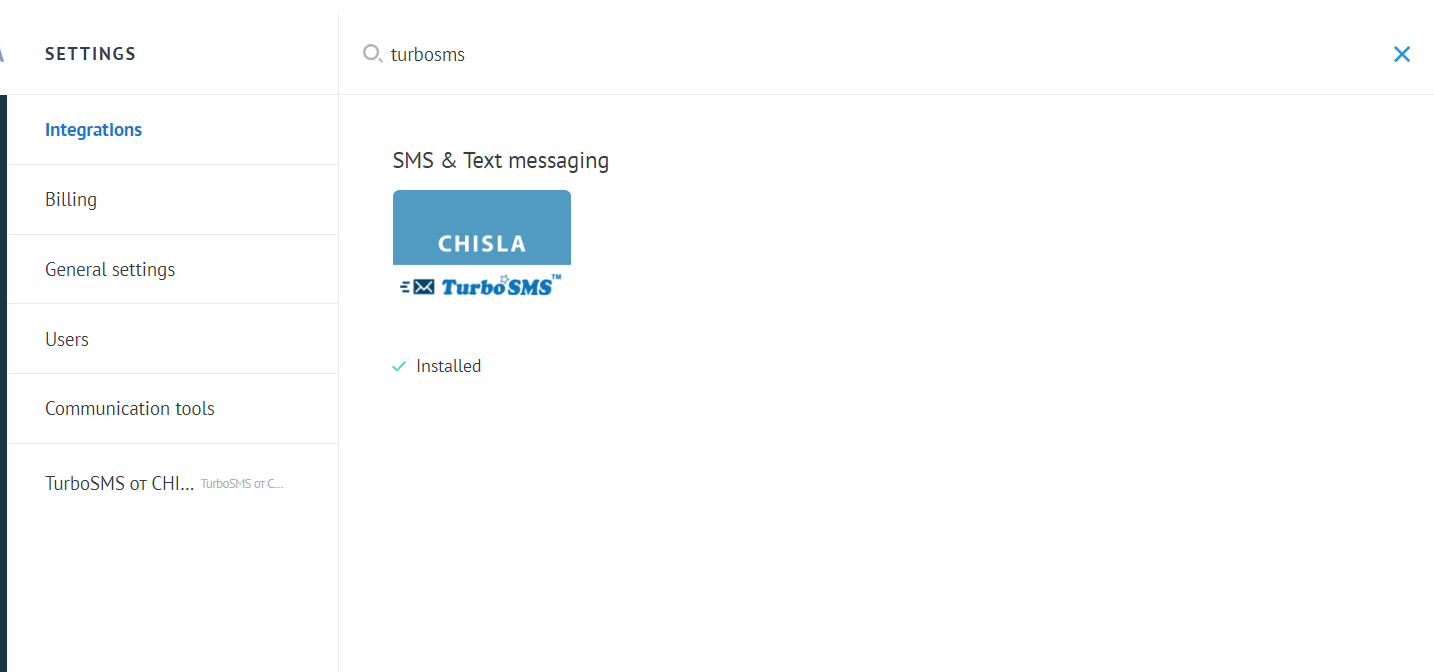
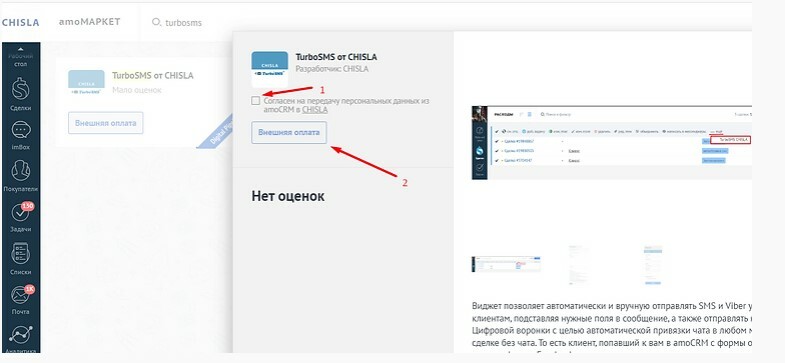
Go to the Kommo CRM marketplace, find TurboSMS, and install it by clicking the "External payment" button.
Step-by-step widget configuration in Kommo CRM — from marketplace installation to automated pipeline messages.
Go to the Kommo CRM marketplace, find TurboSMS, and install it by clicking the "External payment" button.
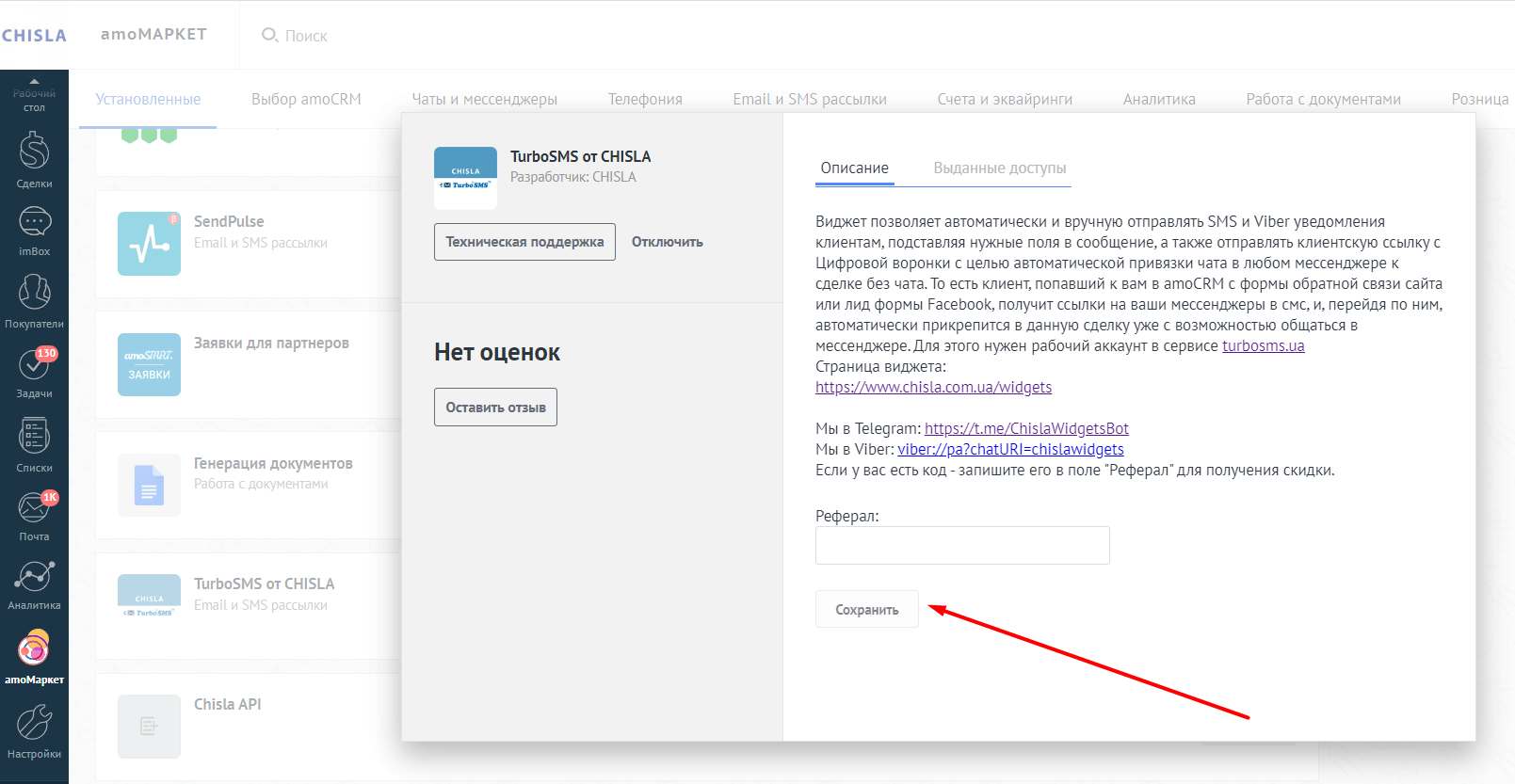
Check item 1 and click the "External payment" button again.
Make sure to click "Save". You can enter any character in the referral field and then click "Save".
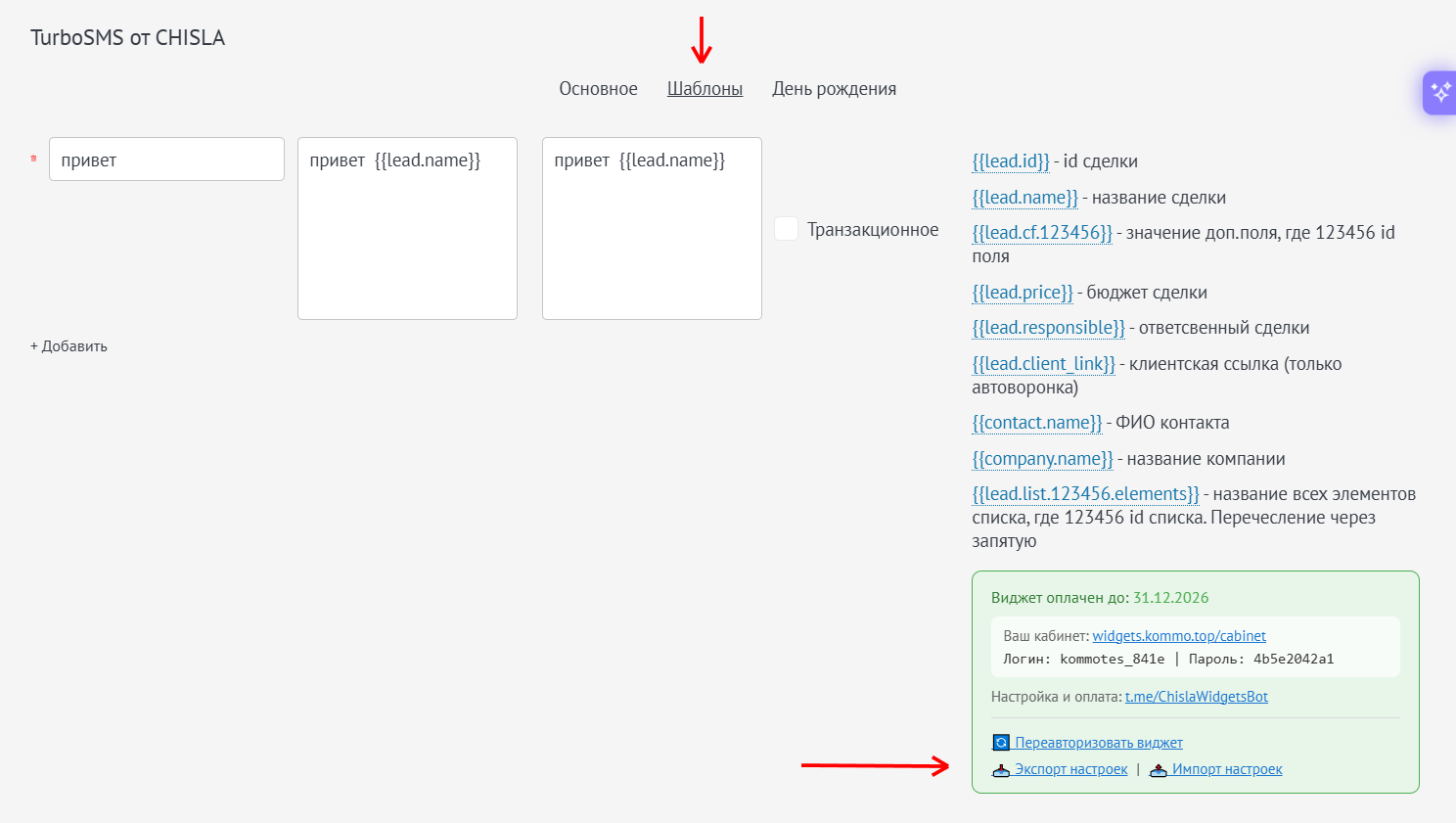
Go to "Settings" in Kommo and enter your details: the API key from your TurboSMS account and the pre-registered sender name (alpha name) from which SMS messages will be sent. To send Viber messages individually at 1 UAH each, add "Mobibon" as a sender under "Senders". Message templates for the widget are also configured here.
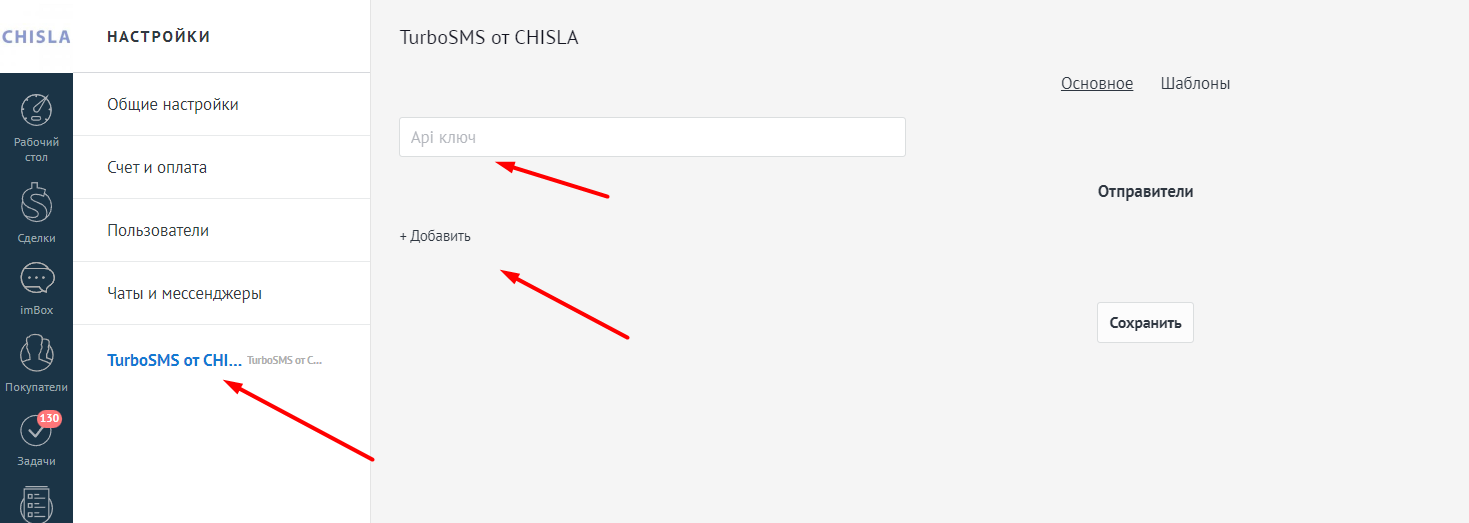
Paste the API key from your TurboSMS account into the settings field.
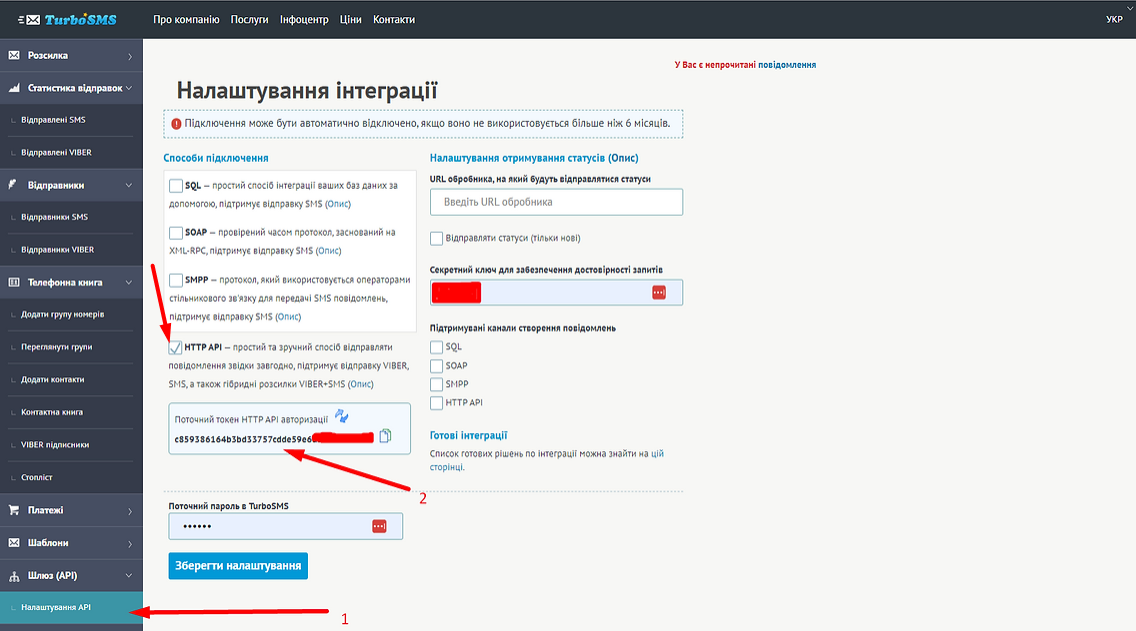
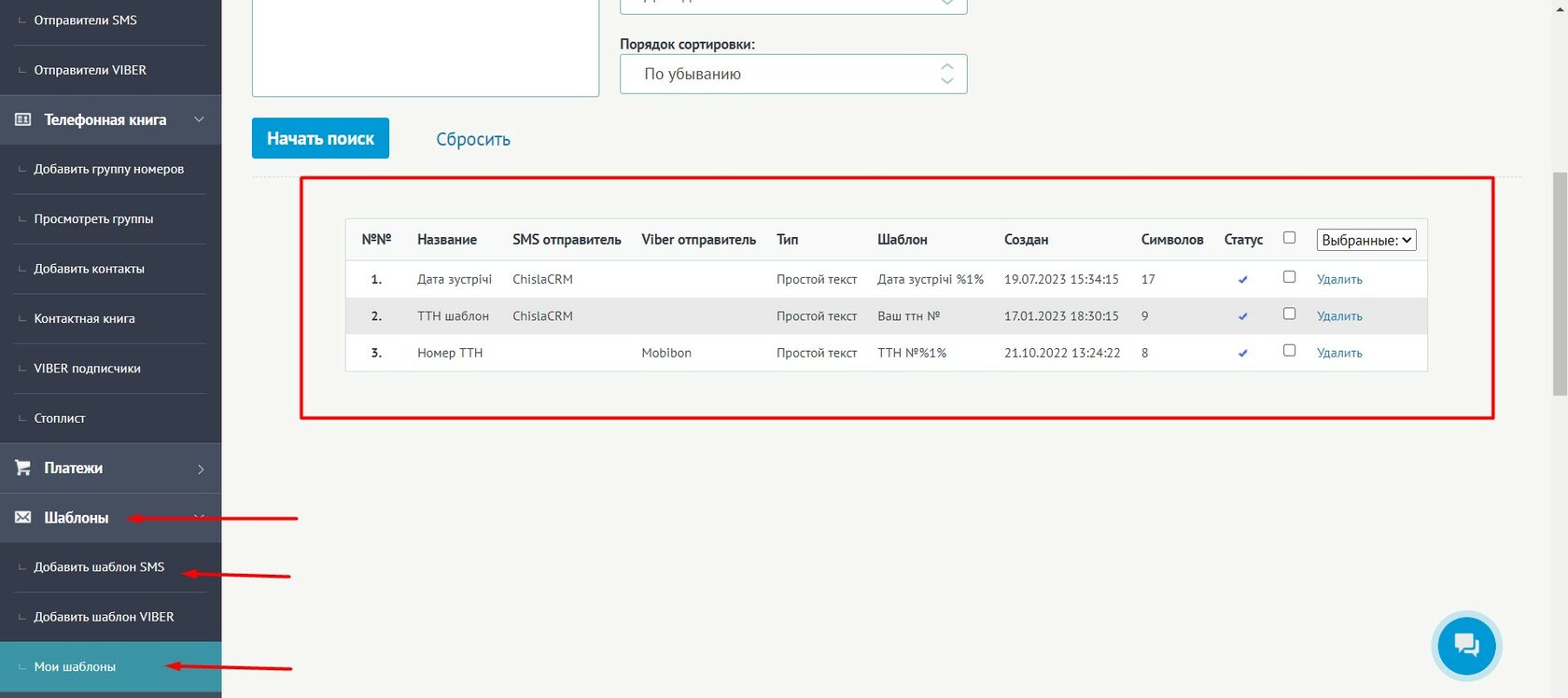
Before sending SMS from a deal card, you need to create a template in your TurboSMS account. Templates are approved promptly.
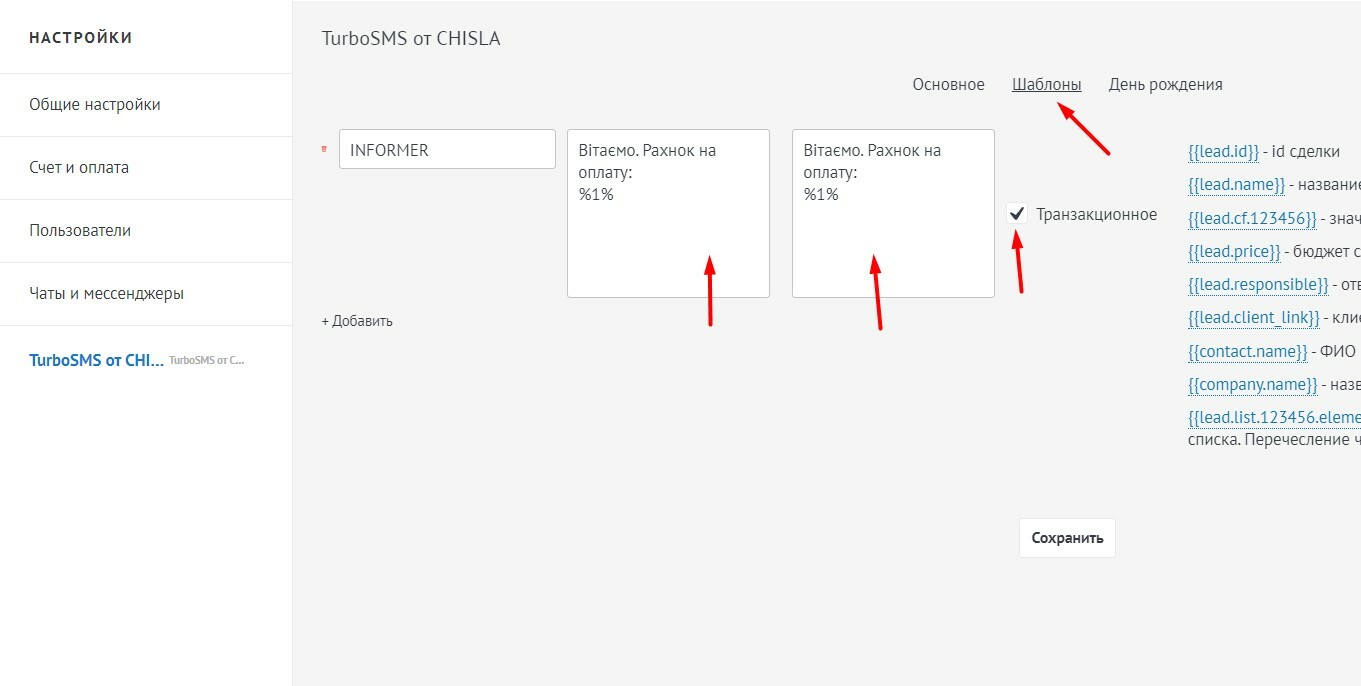
To send Viber messages, contact TurboSMS support to register as an "INFORMER" sender: add the name in your account, sign the service agreement (available under "Service Agreement"), register the template as static text with variables, choose the "Transactional" type, and avoid variables at the very start or end of the text. Approval takes 1–5 business days.
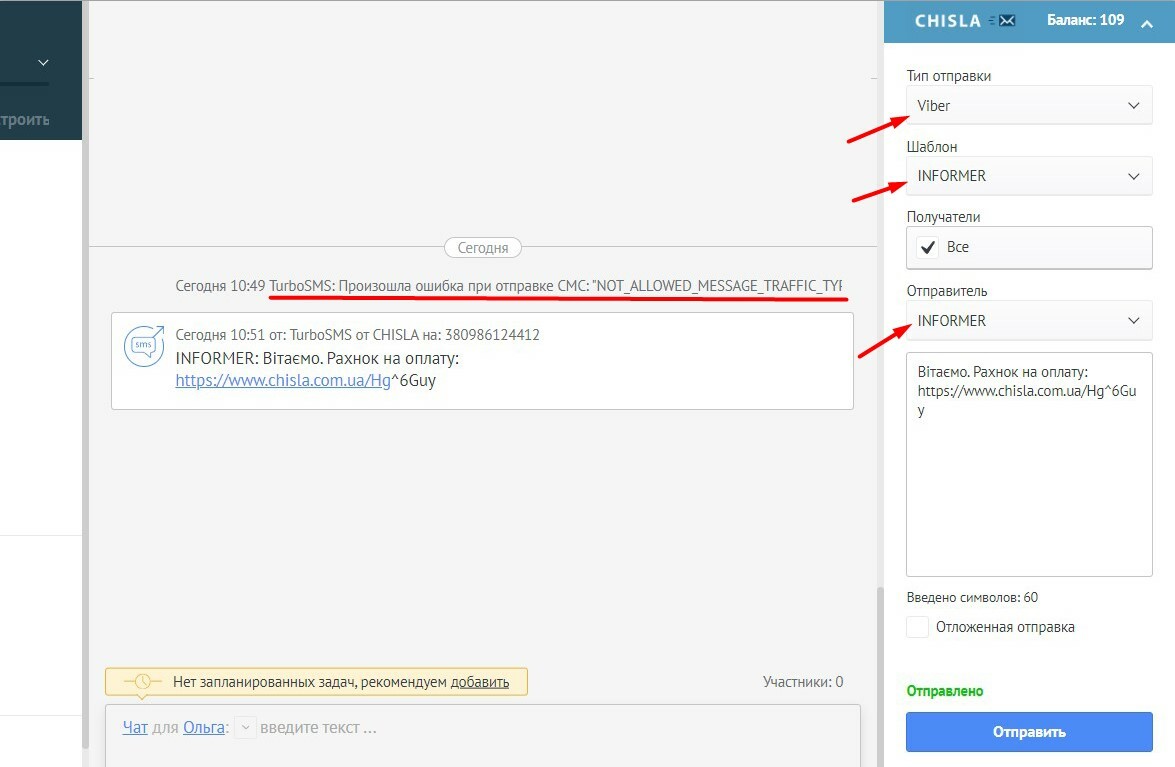
This is how the sent message looks in Viber.
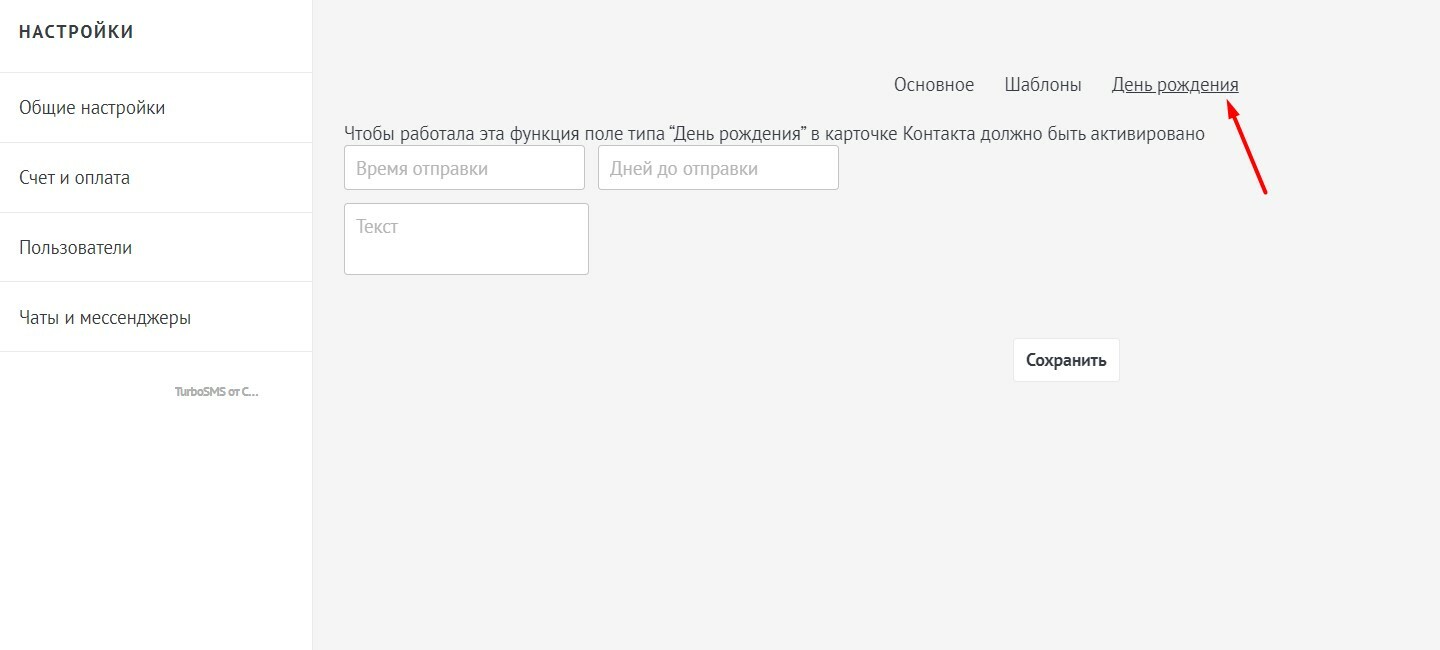
Configure: "Send time" (what time to send), "Days before sending" (how many days before the date), and the message "Text". For the feature to work, the Contact card must have a field of type "Birthday".
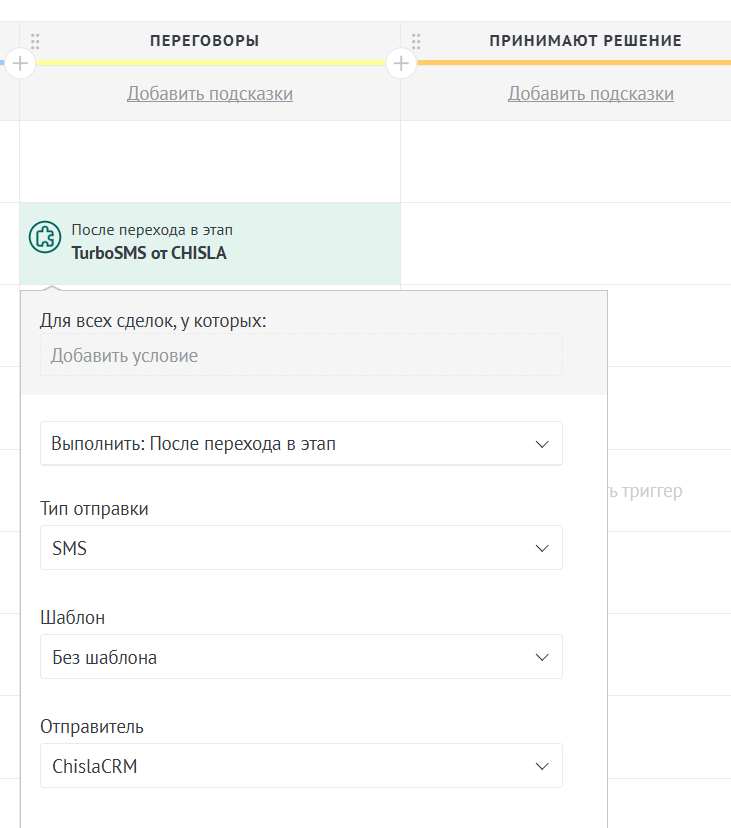
Messages can be sent automatically from the digital pipeline. Add the corresponding trigger to enable this.
In case the widget needs to be reinstalled, all settings can be exported and then imported.
We'll connect TurboSMS, configure templates, the sender name, and pipeline triggers.
We'll get everything running together — from installation to your first automated messages.